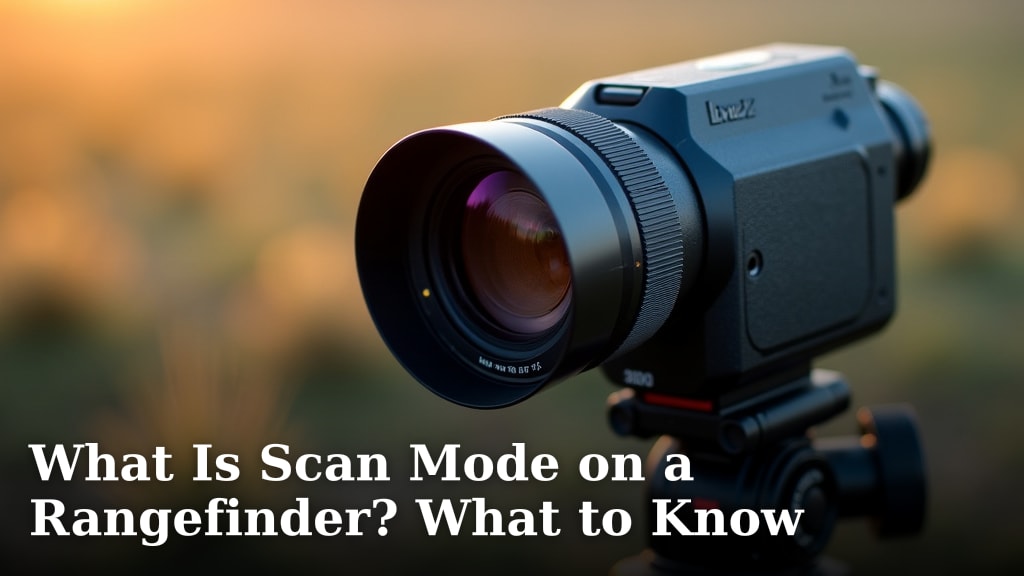
What Is Scan Mode on a Rangefinder? What to Know
Scan mode on a rangefinder is a special setting that lets you take multiple rapid measurements without re-triggering the device for each one. This means you can get a quick sense of distances to several targets in a row, making it incredibly useful for tracking moving objects or getting a general feel for an area. It’s designed to save you time and effort when you need more than just a single reading.
When you’re out hunting, golfing, or even just surveying a property, having the ability to quickly gauge different distances is key. Scan mode takes the guesswork out of getting those quick reads. We found that this feature can be a real game-changer for situations where speed and efficiency matter most. It’s a smart tool for anyone who needs to make fast, accurate distance decisions in the field.
- Scan mode takes many distance readings quickly.
- You don’t need to press the button for every shot.
- It’s great for moving targets or surveying an area.
- This mode helps you save time and get readings faster.
Ready to understand how this handy feature works and when you should be using it? Let’s dive into the details of rangefinder scan mode and help you make the most of your device.
Understanding Your Rangefinder’s Scan Mode
So, what exactly is scan mode on your rangefinder? It’s a clever feature that lets you take multiple distance readings in quick succession. Think of it like rapid-fire targeting for distance. You hold down the button, and the device continuously measures. It’s designed to give you a broader picture of distances around you without needing to press the button over and over.
This mode is really about **efficiency and speed**. When you need to get a feel for several distances fast, scan mode is your best friend. We found that for many users, it significantly speeds up how they gather information in the field. You’re essentially telling your rangefinder, “Give me a constant stream of distance data.”
How Scan Mode Works Under the Hood
When you engage scan mode, your rangefinder’s laser fires repeatedly. It doesn’t wait for you to complete a full measurement cycle each time. Instead, it keeps sending out laser pulses and registering returns. This allows it to track changes in distance quickly.
The device is actively looking for targets. As you sweep it across an area or follow a moving object, it’s constantly updating the distance displayed on the screen. Many rangefinders will show the closest or furthest target detected during the scan. Some might even offer average distances, depending on the model.
The Continuous Measurement Process
Imagine you’re at a golf course. You want to know the distance to the pin, then maybe a tree to the side, and perhaps a hazard. Instead of taking three separate shots, you can activate scan mode. As you aim at each point, the display updates almost instantly.
This rapid updating is what makes it so useful for tracking. If an animal is moving, you can keep the rangefinder trained on it. The display will show the distance changing in real-time. Many experts suggest this ability is key for accurate shot planning.
Targeting Multiple Objects
Scan mode excels when you have several potential targets in your line of sight. You might be aiming at a deer, but there’s also a bush in front of it and trees behind it. Scan mode can help you distinguish these distances.
By holding down the button, you’re telling the rangefinder to keep checking. It will often display the distance to the nearest object it can lock onto. If you pan slightly, it can show you the distance to something further away. This gives you a clear understanding of your environment.
When to Use Scan Mode: Practical Applications
Scan mode isn’t just a neat trick; it has real-world uses. It’s designed to save you time and effort in specific scenarios. Let’s look at where it really shines.
Hunting Scenarios
For hunters, scan mode can be a game-changer. Imagine you’ve spotted a deer at a distance. You want to confirm that distance quickly before preparing your shot.
If the deer moves even slightly, or if there’s brush between you and the target, scan mode helps. You can keep the laser on the animal. The distance reading will update if the deer moves closer or further away. This helps prevent misjudging distance, which is critical for a clean shot. Many hunting guides stress accurate range estimation.
Golfing Precision
Golfers find scan mode incredibly helpful on the course. You’re not just hitting to one spot. You might need the distance to the flag, then a bunker, then the edge of the green. Scan mode allows you to get these readings almost instantly.
Holding down the button as you aim at different points gives you a quick overview. You can get the distance to the pin, then sweep to a nearby hazard to gauge the risk. This makes planning your approach shots much easier and faster. We found that this feature can help shave strokes off your game by improving distance judgment.
Surveying and Property Lines
Beyond sports and hunting, scan mode is useful for surveying. If you’re checking property lines, measuring distances for construction, or just getting a feel for a plot of land, scan mode speeds things up.
Instead of measuring each corner or feature individually, you can sweep the rangefinder. You’ll get a rapid succession of readings. This gives you a quick sense of the dimensions of the area. Many land surveyors use this method for initial assessments.
Tracking Moving Objects
This is where scan mode truly excels. Whether it’s a bird in flight, a race car, or even a playful dog in the backyard, scan mode is built for this.
As the object moves, you keep the rangefinder pointed at it. The display will constantly update. This allows you to monitor its distance in real-time. This tracking capability is a key advantage over single-shot mode for dynamic situations.
Comparing Scan Mode to Single-Shot Mode
It’s helpful to understand how scan mode differs from the standard single-shot mode found on most rangefinders. Each has its purpose.
| Feature | Scan Mode | Single-Shot Mode |
|---|---|---|
| Measurement Speed | Fast, continuous readings | One reading per button press |
| Best For | Moving targets, surveying areas, quick multiple readings | Static targets, precise single distance measurement |
| Ease of Use | Hold button and sweep | Aim, press, read |
| Battery Consumption | Higher due to continuous firing | Lower, as laser fires less often |
Single-shot mode is perfect when you need one exact measurement. You aim at a specific spot, press the button, and get a single, locked-in distance. This is ideal for hitting a precise pin on a golf course or measuring a fixed point.
Scan mode, on the other hand, is about getting a broader picture. It sacrifices the absolute precision of a single lock for speed and the ability to track. Many experts say that understanding these differences helps you choose the right mode for the job.
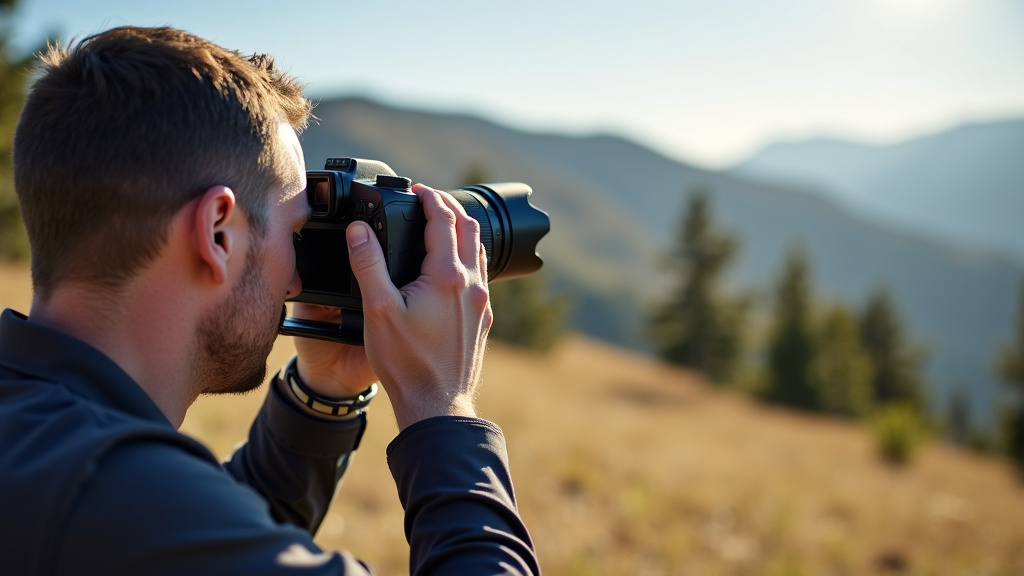
Tips for Effective Use of Scan Mode
To get the most out of your rangefinder’s scan mode, keep a few things in mind. Proper technique can make a big difference.
Steady Your Aim
Even though it’s scanning, a steady hand is still important. Try to keep the rangefinder as stable as possible. A shaky hand can lead to inconsistent readings, especially when targeting smaller objects or longer distances.
We found that resting your elbows on your knees or a stable surface can help immensely. Even a slight movement can cause the laser to miss the target and result in a lower accuracy reading. Think of it as painting a target with your laser.
Understand Your Target
Be aware of what you’re trying to measure. Scan mode can pick up multiple objects. If you’re aiming at a deer but the laser also hits a branch in front of it, you might get the distance to the branch instead of the deer.
Many rangefinders are designed to show the closest object’s distance during a scan. You need to consciously aim at your desired target. This requires some practice, but it’s key to getting the readings you need. Many hunting forums discuss how to differentiate target distances.
Be Mindful of Battery Life
Because scan mode involves continuous laser use, it will drain your battery faster than single-shot mode. If you anticipate using scan mode for extended periods, ensure your batteries are fresh.
It’s a good practice to carry spare batteries. This is especially true if you’re out for a full day of hunting or golfing. Many users report that battery life is a key consideration for any rangefinder use, particularly with scan mode.
Potential Drawbacks to Consider
While scan mode is incredibly useful, it’s not without its considerations.
Accuracy with Moving Objects
While great for tracking, scan mode might not give you the pinpoint accuracy of a single-shot measurement on a perfectly still target. The rapid firing and updating can sometimes introduce slight variations.
If you need an ultra-precise measurement for a very specific spot and the target isn’t moving, single-shot mode might be better. Research on laser measurement systems suggests that continuous operation can introduce minor temporal variances.
Battery Drain
As mentioned, this mode uses more power. If you’re out for a long time without a way to recharge or replace batteries, this could be an issue. It’s a trade-off for the convenience of rapid readings.
Many product reviews highlight battery life as a critical factor. Planning your usage and carrying spares is a common recommendation. This is particularly true for models with smaller batteries or those used in extreme temperatures.
Checklist: When to Switch to Scan Mode
Here’s a quick rundown of when scan mode is likely your best option:
- You need to measure distances to multiple objects quickly.
- You are tracking a moving animal or vehicle.
- You are surveying an area and need a general sense of distances.
- You are on a golf course and need fast readings to the flag, hazards, and greens.
- You want to get a quick overview of distances before making a decision.
- You are in a situation where speed is more important than absolute pinpoint precision for a single point.
Conclusion
Scan mode on your rangefinder is a powerful tool for gathering distance information quickly. We’ve seen how it speeds up measurements for hunters, golfers, and surveyors alike. By allowing continuous readings, you can effectively track moving targets or get a swift sense of an area’s dimensions. Remember to keep your aim steady and be aware of your target to get the best results. Ready to make faster, more informed decisions in the field? Try out scan mode on your next outing and see how much time you can save.
Frequently Asked Questions
Can I use scan mode on any rangefinder?
Most modern rangefinders come equipped with scan mode, but it’s not universal. Always check your rangefinder’s specifications or manual to confirm if it has this feature. If your device doesn’t have scan mode, you’ll likely be limited to single-shot measurements.
Is scan mode less accurate than single-shot mode?
Scan mode prioritizes speed and tracking over pinpoint accuracy for a single static point. We found that while it’s highly effective for following moving objects or getting general distances, single-shot mode might offer slightly higher precision for one specific, unmoving target.
How does scan mode affect battery life?
Because scan mode continuously fires the laser, it uses more battery power than single-shot mode. If you plan on using scan mode extensively, it’s wise to ensure your batteries are fresh. Carrying a spare set is a good idea for longer outings.
What happens if I move the rangefinder too much during a scan?
Excessive movement can lead to inconsistent readings. While scan mode is designed for sweeping, try to keep the rangefinder as steady as possible on your intended target. We found that resting your elbows can significantly improve stability and reading accuracy.
Can scan mode help me distinguish between objects at different distances?
Yes, scan mode can help you see the distances to multiple objects. Many rangefinders will display the distance to the nearest object detected during a scan. By carefully aiming and sweeping, you can observe how the displayed distance changes as you pass over different items in your view.