How to Use a Garmin Approach G12
To use a Garmin Approach G12, charge it, let it find satellites, choose your course, and check the distance to the green or hazards as you play. Use the buttons to move through hole views and record shot distance.
On this page (8 sections)
- How do you set up a Garmin Approach G12 before a round?
- How do you read distances during a hole?
- How do you move to the next hole?
- How do you measure shot distance?
- What should you do if the distance seems wrong?
- Which GPS format fits your round?
- How can you make the G12 easier to use on the course?
- How should you use a Garmin Approach G12 during a round?
To use a Garmin Approach G12, charge it, let it find satellites, choose your course, and check the distance to the green or hazards as you play. Use the buttons to move through hole views and record shot distance.
Give the device a clear view of the sky while it connects. Before your round, learn where the main distance and hole controls appear so you can check yardages without slowing play.
How do you set up a Garmin Approach G12 before a round?
Set up the Garmin Approach G12 before you reach the first tee: charge it, take it outdoors, wait for GPS reception, and select the course. Follow the on-screen prompts if menus differ from the steps you expect.
Start with the device charged according to Garmin's instructions. GPS reception can take time, especially when you first turn it on or when buildings, trees, or terrain block the sky.
When the course list appears, choose the course you are playing and check that the first hole matches. If the course doesn't appear, confirm GPS reception and consult Garmin's instructions for course updates.
For a closer look at the device's features and fit, read our Garmin Approach G12 review. Garmin's Approach G12 support page is the place to check the current manual and help topics.
How do you read distances during a hole?
Read the distance shown for the green or a hazard, then use it to plan your next shot. Check which point the number refers to before choosing a club or target.
A golf GPS may show distances to the front, middle, and back of the green, plus hazard information. Confirm the labels on the G12 screen rather than assuming one number means the center.
As you move up the hole, the distance changes with your position. Check again after walking or riding to your ball, and keep the device where it can receive satellite signals.
How do you use the Garmin Approach G12 for hazards?
Use the hazard view to check the distance to the feature that affects your shot. Identify whether the number refers to the near or far edge, then decide whether your planned line leaves enough room.
A hazard distance helps with course planning, but it doesn't account for your personal carry distance or wind. Use your own club distances and the conditions you can see to choose a target.
How do you move to the next hole?
The G12 should follow your progress through the course, but check the hole number after finishing each green. If it hasn't advanced, use the device's on-screen controls to select the correct hole.
Automatic hole progression can depend on how you move around the course and the device's settings. A quick hole-number check helps catch a missed change before you rely on the displayed distances.
If you use another GPS format, our guide to how to use a Garmin Approach S44 covers a watch-style device. Readers comparing clip-on options can also browse best clip on golf GPS devices.
How do you measure shot distance?
To measure a shot, mark your position before you hit, then check the distance after you reach the ball. Confirm the G12's shot-distance steps in its current manual, since button actions can vary by screen or software version.
A GPS shot measurement is most useful when you mark the same point each time and keep the device with you. Record a few shots with the same club and conditions before using the numbers to guide club selection.
Don't confuse shot distance with distance to the green. The first measures how far you moved between marked points; the second helps you plan the next shot.
What should you do if the distance seems wrong?
If a distance looks wrong, check GPS reception, the selected course, and the hole number first. Move to a spot with a clearer view of the sky and allow the device time to update.
Tree cover, nearby buildings, and terrain can affect satellite reception. A stale course or the wrong hole can also make a displayed yardage seem off.
Restart the device only as Garmin's instructions allow. If the same issue continues, use Garmin support to check for troubleshooting steps or course updates.
Which GPS format fits your round?
Choose a GPS format based on how you want to check distances: a handheld or clip-on device, a wristwatch, or audio guidance. The right format is the one you can read or hear comfortably while keeping pace.
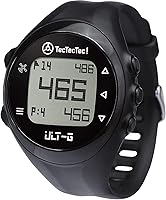
A wrist device may suit golfers who want distances at a glance. The TecTecTec ULT-G Golf GPS Watch provides front, center, and back green distances, plus hazard and shot-distance features.
A clip-on unit can suit golfers who prefer not to wear a watch. For voice guidance and a screen, the GOLFBUDDY Voice 2S+ provides front, center, and back distances with a button press.
If you prefer a direct measurement to a visible target, a laser rangefinder is another option. The Callaway 300 Pro measures distance with 6x magnification and has a pin-locking feature up to 300 yards.
Compare wrist fit and sizing options in our guide to the best Garmin Approach S50 watch band. Choose based on how you like to access yardages, not on a feature you won't use.
How can you make the G12 easier to use on the course?
Make the Garmin Approach G12 easier to use by checking the course and hole before play, then learning the distance screen you use most. Keep the device accessible and glance at it when you have time to plan your next shot.
Use the same routine on each hole: check the hole number, read the relevant green or hazard distance, then put the device away while you play. This keeps course information useful without turning every shot into a menu search.
If you're still deciding whether this GPS format suits you, start with the Garmin Approach G12 review and compare it with the other options in our best clip on golf GPS devices guide.
How should you use a Garmin Approach G12 during a round?
For a smooth round, confirm the course and hole, check the distance that matches your target, and verify the hole number as you move forward. Use shot measurement only after confirming how to mark a shot on your device.
Choose the G12 if you want a golf GPS you can check during play, and consider a watch if you prefer wrist access. If seeing distances on a screen isn't your preference, compare a voice-guided clip-on or a laser rangefinder before choosing.
Frequently asked questions
How do you start a Garmin Approach G12?
Charge the Approach G12, take it outdoors, and allow it to find satellite signals. Select your course when it appears, then check the hole and distances shown before playing.
Button functions can depend on the screen, so follow the on-device prompts and Garmin's current manual for exact controls.
Does the Garmin Approach G12 need a phone during a round?
The Approach G12 uses GPS to provide course distances, so keep it with you where it can receive satellite signals. A phone may be useful for setup or course updates, depending on Garmin's current instructions, but check the manual for the exact connection and update steps for your unit.
Can the Garmin Approach G12 measure shot distance?
Golf GPS devices can include a shot-distance function, but use the G12's on-screen controls and current manual to confirm the steps for your unit. In general, mark your starting point, play the shot, then read the measured distance before marking another shot or moving on.
What should you do if the Garmin Approach G12 shows the wrong course?
Confirm that the device has a clear view of the sky and give it time to acquire GPS signals. Check the selected course and hole on screen, then use Garmin's course update instructions if the course is missing or its map appears out of date.